Fix Clicking & Static in reFX Nexus: Complete Guide
Clicking and static in reFX Nexus can stop your production cold. Learn the exact fixes for buffer issues, CPU overload, and driver problems that cause these audio artifacts.

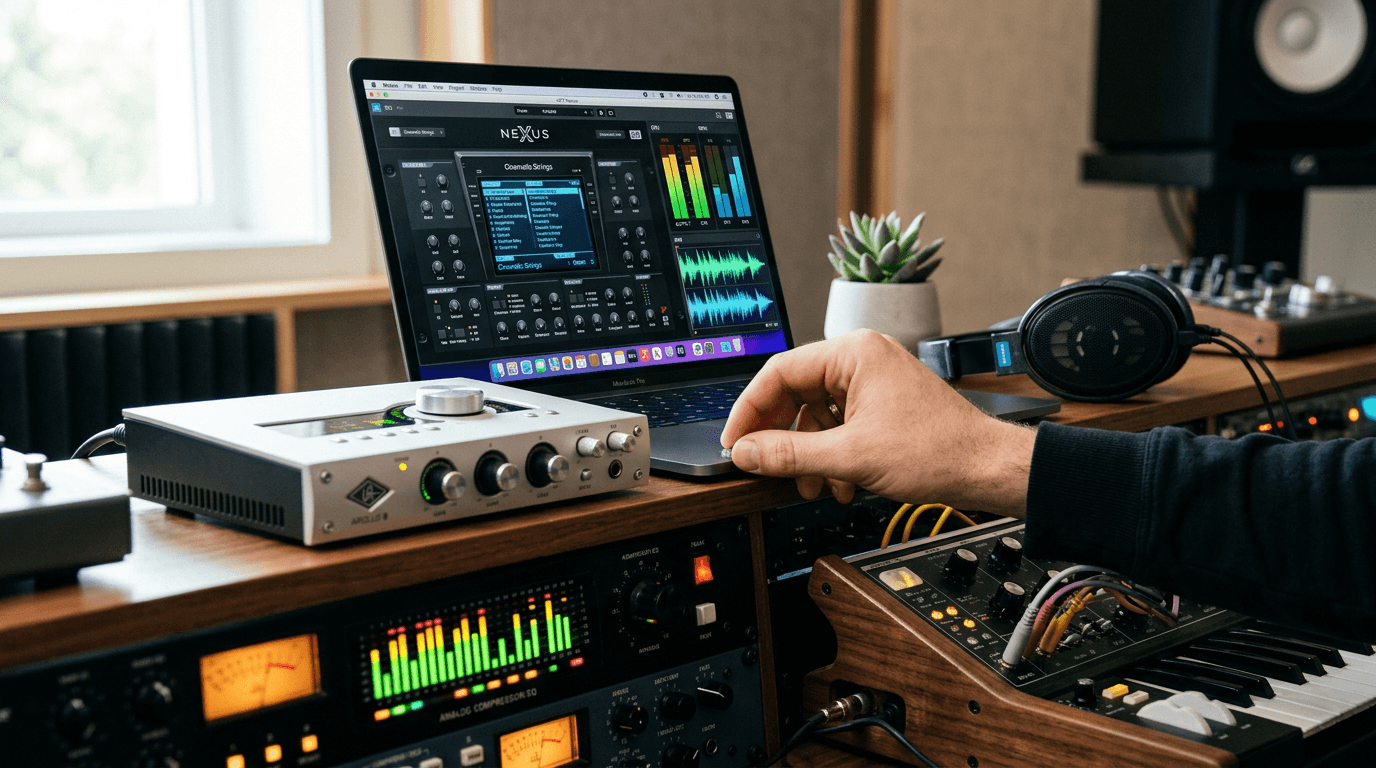
How to Fix Clicking and Static Sounds in reFX Nexus
Learn more about discodsp usual suspect emulators: profit or problem?
Clicking and static sounds in reFX Nexus can derail your production workflow faster than almost any other technical issue. These unwanted artifacts plague producers across all experience levels, turning pristine presets into unusable noise generators. The good news? Most clicking and static problems stem from a handful of fixable causes related to buffer settings, CPU load, and plugin configuration.
Why Does reFX Nexus Produce Clicking and Static?
The clicking and static sounds you hear are not flaws in Nexus itself. These audio artifacts typically result from your system struggling to process audio in real-time. When your computer cannot keep up with the demands of audio playback, it creates gaps in the audio stream that manifest as clicks, pops, and static noise.
Nexus is a sample-based ROMpler that loads large sample libraries into RAM. Each preset contains multiple layers of high-quality samples that require significant processing power. When you add effects, automation, or multiple instances of Nexus, the CPU demands multiply quickly.
How Do Audio Buffers Affect Sound Quality?
Your DAW uses an audio buffer to manage the flow of data between your computer and audio interface. Think of it as a small storage tank that holds audio data before sending it to your speakers.
Smaller buffers mean lower latency but require more processing power. Larger buffers reduce CPU strain but increase the delay between playing a note and hearing it.
When your buffer size is too small for your system's capabilities, the computer cannot fill the buffer fast enough. This creates gaps that produce clicking and popping sounds. The solution involves finding the sweet spot where latency remains acceptable while giving your CPU enough breathing room.
What Are the Quick Fixes for Nexus Clicking and Static?
Start with these immediate solutions that resolve most clicking issues within minutes. These fixes address the most common causes without requiring system upgrades or complex troubleshooting.
Increase Your Audio Buffer Size
Navigate to your DAW's audio settings and locate the buffer size option. Try these settings in order:
For a deep dive on malus clean room as a service: secure data collaboration, see our full guide
- Start at 512 samples for a balance between latency and stability
- Move to 1024 samples if clicking persists during playback
- Use 2048 samples for mixing and mastering when latency does not matter
- Drop to 128-256 samples only when recording MIDI or audio input
Most DAWs let you adjust buffer size in the preferences or audio device settings. In Ableton Live, check Options > Preferences > Audio. FL Studio users should visit Options > Audio Settings. Logic Pro users will find it under Preferences > Audio > Devices.
For a deep dive on temporal: the 9-year journey to fix javascript time, see our full guide
Freeze or Bounce Nexus Tracks
Freezing converts your MIDI tracks into temporary audio files, eliminating real-time processing demands. This single action can solve clicking issues when working with multiple Nexus instances.
The process varies by DAW but typically involves right-clicking a track and selecting "Freeze" or "Render in Place." You can still edit the MIDI later by unfreezing the track. Use this technique for any Nexus tracks you are not actively editing.
Disable Unnecessary Plugins and Tracks
Every active plugin consumes CPU resources, even when not producing sound. Mute or disable tracks you are not currently using.
Remove unused effects from your Nexus presets, especially reverbs and delays that run continuously. Check your mixer for hidden effects on buses and master channels. These often-forgotten processors accumulate over time and contribute to CPU overload.
How Do You Fix Persistent Static Issues in Nexus?
When basic fixes do not eliminate the clicking, you need to dig deeper into system optimization and plugin management.
Optimize Your Computer's Performance Settings
Windows users should enable High Performance mode in Power Options. This prevents the CPU from throttling down during audio production.
Mac users should disable App Nap for their DAW by right-clicking the application, selecting Get Info, and checking "Prevent App Nap."
Close background applications that consume resources. Web browsers, video players, and cloud sync services can interrupt audio processing. Use Task Manager (Windows) or Activity Monitor (Mac) to identify resource hogs.
Update Your Audio Interface Drivers
Outdated drivers cause compatibility issues that manifest as clicks and pops. Visit your audio interface manufacturer's website and download the latest drivers for your specific model and operating system.
After updating, restart your computer before opening your DAW. Some driver updates require a clean installation, which means uninstalling the old driver first. Check the manufacturer's instructions for the proper update procedure.
What If Only Nexus Causes Problems?
If other plugins work fine but Nexus consistently produces static, the issue may lie in the plugin installation or sample library. Try these Nexus-specific solutions:
- Reinstall Nexus completely - Uninstall both the plugin and content libraries
- Verify your Nexus version - Older versions have known compatibility issues with modern DAWs
- Check sample library integrity - Corrupted samples can cause playback glitches
- Run Nexus in compatibility mode - Windows users can try this for older Nexus versions
- Contact reFX support - They maintain a database of known issues and solutions
What System Requirements Does Nexus Need?
Nexus demands substantial system resources, especially when using multiple instances or complex presets. Understanding these requirements helps you work within your system's limitations.
How Much RAM Does Nexus Require?
Nexus loads samples into RAM for instant playback. Each expansion pack adds to the memory footprint. A typical Nexus project can consume 2-4GB of RAM before considering other plugins and DAW overhead.
Aim for at least 16GB of system RAM for comfortable Nexus usage. With 8GB or less, you will need to bounce tracks frequently or limit the number of active instances. Modern productions often benefit from 32GB, especially when combining Nexus with other sample libraries.
Does CPU Processing Power Matter?
Multi-core processors handle audio production better than single-core chips with higher clock speeds. Nexus benefits from CPUs with at least four cores.
Intel i5/i7 or AMD Ryzen 5/7 processors from recent generations provide adequate performance. If you are using a laptop, ensure it is plugged in during production. Battery mode throttles CPU performance to conserve power, which guarantees clicking and popping during playback.
Does Audio Interface Quality Affect Performance?
Budget audio interfaces sometimes struggle with driver stability. Professional interfaces from Focusrite, Universal Audio, RME, or MOTU typically offer better driver support and lower latency capabilities.
Your interface should support ASIO (Windows) or Core Audio (Mac) for optimal performance. Generic drivers add latency and increase the likelihood of audio glitches.
How Can You Prevent Clicking in Nexus?
Developing good production habits prevents clicking issues before they start. These workflows keep your system running smoothly throughout the creative process.
Template Optimization
Create project templates with appropriate buffer settings already configured. Set up routing and buses efficiently to minimize processing overhead. Include only the plugins and tracks you regularly use.
Save multiple templates for different scenarios: one for composition with lower buffer sizes, another for mixing with higher buffers and frozen tracks.
Regular Maintenance Practices
Bounce or freeze tracks as you progress through a project. Do not wait until the clicking starts.
Schedule this task after completing each major section of your arrangement. Periodically consolidate your work by bouncing groups of tracks to audio stems. This creates natural checkpoints and reduces the cumulative CPU load.
Monitor Your CPU Usage
Most DAWs display real-time CPU and disk usage meters. Keep these visible while working.
When usage consistently exceeds 70%, start freezing tracks before adding more elements. This proactive approach prevents the frustration of hearing clicks during an inspired creative moment.
Fix Nexus Clicking and Static Today
Clicking and static in reFX Nexus almost always trace back to buffer settings, CPU overload, or driver issues rather than problems with the plugin itself. Start by increasing your buffer size to 512 or 1024 samples and freezing unused tracks. These two actions resolve most clicking issues immediately.
Continue learning: Next, explore ai comments on hacker news: why human conversation matters
For persistent problems, update your audio drivers, optimize your computer's performance settings, and ensure your system meets Nexus's RAM and CPU requirements. Prevention through smart workflow habits beats troubleshooting after problems arise. Keep your CPU usage below 70%, freeze tracks regularly, and maintain your system with current drivers and updates.
Related Articles

AI's Role in Unveiling ICE Officers' Identities
AI unmasking ICE officers underscores a shift towards transparent law enforcement, raising questions about privacy and ethics in the digital age.
Sep 2, 2025

Age Verification Laws: Impact on Web Traffic Trends
Discover the paradox of age verification laws: How compliance impacts web traffic and the tech innovations shaping the future of digital content access.
Sep 2, 2025

Merz Tags Putin as Top War Criminal in Modern Era
Merz's assertion that Putin could be this era's gravest war criminal triggers a global debate on cybersecurity, AI, and warfare ethics.
Sep 3, 2025
Comments
Loading comments...