How Fast Is a macOS VM? Performance & Size Guide 2024
Virtual machines offer flexibility, but how fast can a macOS VM really run? We break down performance metrics, size optimization, and real-world benchmarks to help you decide.

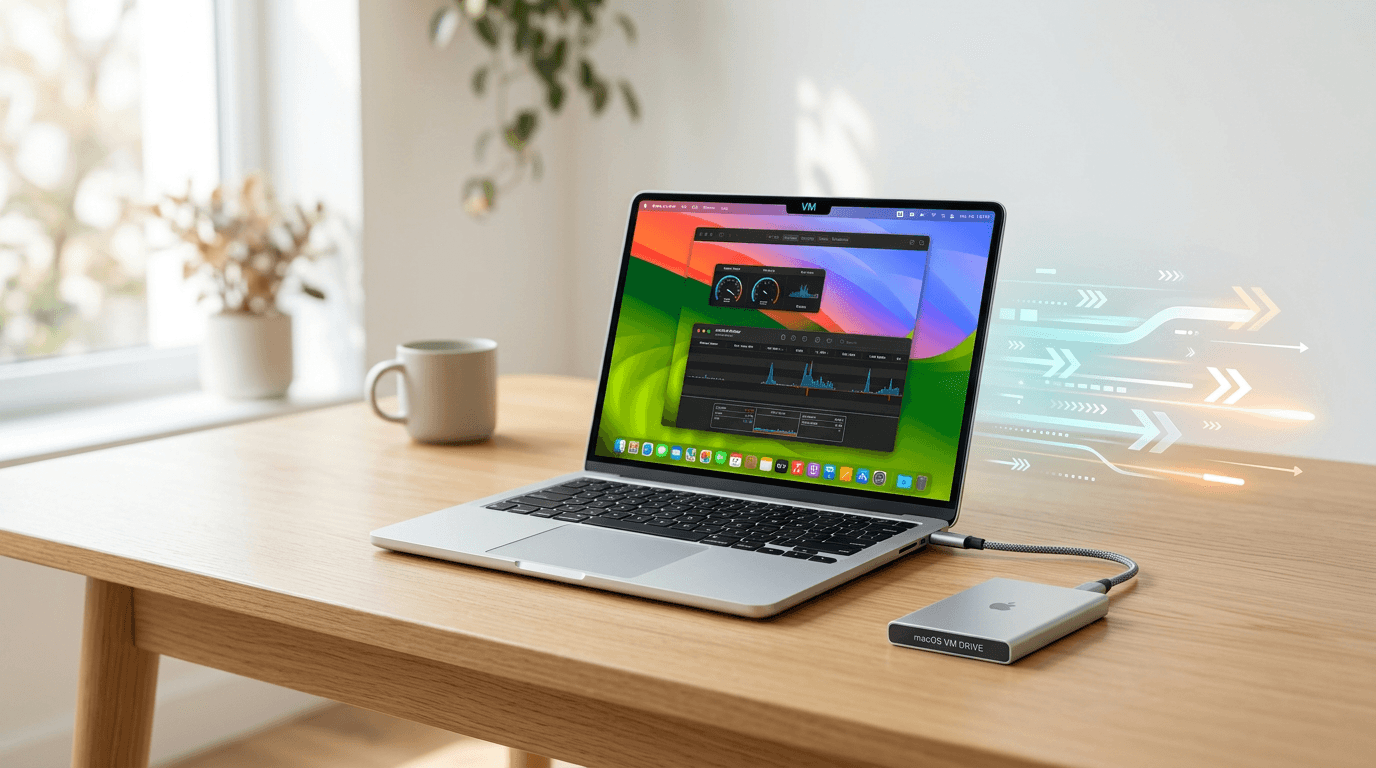
Understanding macOS VM Performance and Size
Learn more about is apple intelligence making up words? ai hallucinations
Virtualization has transformed how developers test software, how IT professionals manage systems, and how users run multiple operating systems. But when it comes to macOS VMs, questions about speed and storage requirements often stop people in their tracks.
The reality is more nuanced than a simple fast or slow answer. MacOS virtual machines operate under unique constraints compared to Windows or Linux VMs.
Apple's licensing restrictions limit where you can legally run macOS, and the hardware requirements add another layer of complexity. Understanding these factors helps you set realistic expectations and optimize your setup.
How Fast Does a macOS VM Run?
The speed of a macOS VM depends heavily on your host system, hypervisor choice, and resource allocation. Modern Apple Silicon Macs running macOS VMs achieve near-native performance, often reaching 80-95% of bare metal speeds.
Intel-based systems typically see more overhead. Performance ranges from 60-80% of native speeds on these older machines.
Virtualization software matters significantly. VMware Fusion, Parallels Desktop, and UTM each handle resources differently. Parallels consistently shows the best performance on Apple Silicon, while VMware Fusion remains popular for Intel Macs.
What Performance Can You Expect from macOS VM Benchmarks?
CPU-intensive tasks in macOS VMs show measurable differences from native performance. Single-threaded operations typically maintain 85-90% of bare metal speed. Multi-threaded workloads can drop to 70-85% depending on core allocation.
Graphics performance presents the biggest challenge. Metal API support in virtualized environments remains limited, causing graphics-intensive applications to run at 40-60% of native speeds.
This impacts video editing, 3D rendering, and gaming significantly. You'll notice the difference immediately when working with visual content.
Which Factors Affect macOS VM Speed Most?
For a deep dive on plugin alliance, addictive drums & more: huge audio sale, see our full guide
Several variables determine your virtual machine's performance ceiling:
- RAM allocation: Dedicate at least 8GB for basic use, 16GB for development work
- CPU cores: Assign 4-6 cores for optimal balance between host and guest performance
- Storage type: NVMe SSDs provide 3-5x faster disk operations than SATA drives
- Hypervisor overhead: Type 2 hypervisors add 10-20% performance overhead
- Host OS resources: Keep 30-40% of system resources for the host operating system
For a deep dive on why black fan versions take so long to release, see our full guide
Memory bandwidth becomes a bottleneck faster than most users expect. Virtual machines share memory controllers with the host system, creating contention during heavy workloads.
What Is the Minimum Size for a macOS VM?
The minimum viable macOS VM requires careful planning and aggressive optimization. A bare installation of macOS Ventura occupies approximately 15-20GB, but a functional VM needs additional space for applications and system operations.
Realistic minimum sizes vary by use case. A development environment requires 40-50GB, while a testing setup can function with 30-35GB.
Production environments should allocate 60GB minimum to prevent storage-related performance degradation. Skimping on storage space creates problems down the road.
How Can You Optimize macOS VM Size?
Reducing VM footprint without sacrificing functionality requires strategic choices. Start by disabling unnecessary system features and removing pre-installed applications you won't use.
System caches and temporary files accumulate quickly. Regular maintenance using built-in tools or third-party cleaners can reclaim 5-10GB.
Disable Time Machine within the VM since your hypervisor likely provides snapshot functionality. This eliminates redundant backup overhead.
What Are the Best Size Reduction Techniques?
Implement these strategies to minimize your virtual machine footprint:
- Disable iCloud integration to prevent duplicate file storage
- Remove language files for languages you don't use (saves 2-3GB)
- Clear system logs older than 7 days
- Uninstall Xcode components if not actively developing
- Use thin provisioning to allocate disk space dynamically
Thin provisioning deserves special attention. This feature allocates disk space as needed rather than reserving the full amount upfront.
A 60GB thin-provisioned disk might only consume 25GB initially, growing as you add data. This approach maximizes efficiency without compromising functionality.
How Do Storage Formats Impact VM Size and Speed?
Virtual disk formats significantly affect both size and performance. APFS sparse bundles offer the best compression ratios, reducing storage requirements by 20-30% compared to raw disk images.
However, compression adds CPU overhead during disk operations. You trade processing power for storage savings.
QCOW2 format provides excellent compression but shows slower performance on random write operations. VMDK remains the most compatible format across hypervisors, though it offers minimal compression benefits.
Does Apple Silicon Outperform Intel for macOS VMs?
Apple Silicon Macs running macOS VMs demonstrate remarkable efficiency gains. The unified memory architecture eliminates traditional memory bottlenecks, while hardware-accelerated virtualization features in M-series chips reduce overhead substantially.
Intel-based systems require more aggressive resource allocation to achieve acceptable performance. Hyper-Threading helps, but the lack of hardware virtualization extensions in some older processors creates noticeable lag.
The performance gap between Apple Silicon and Intel continues to widen with each generation. M1, M2, and M3 chips deliver increasingly impressive virtualization performance.
Can You Run macOS VMs on Non-Apple Hardware?
Legally running macOS VMs on non-Apple hardware violates Apple's End User License Agreement. Technically, Hackintosh VMs are possible but suffer from stability issues, missing drivers, and significant performance penalties.
Performance typically drops to 40-50% of native speeds with frequent crashes. The experience frustrates users and wastes time troubleshooting.
The legal and technical challenges make non-Apple hardware unsuitable for serious macOS virtualization work. If you need macOS VMs regularly, investing in Apple hardware provides the only reliable path forward.
Which Hypervisor Delivers the Best Speed?
Hypervisor selection directly impacts both performance and minimum VM size. Parallels Desktop excels on Apple Silicon with optimized memory management and superior graphics acceleration.
VMware Fusion offers better enterprise features but shows slightly lower performance. The difference matters most for demanding workloads.
UTM provides free, open-source virtualization using QEMU underneath. Performance lags behind commercial options by 10-15%, but the zero cost makes it attractive for occasional use.
What Configuration Settings Maximize Performance?
Optimal configuration balances performance against resource consumption. Allocate 50-60% of available RAM to the VM for intensive workloads, but never exceed 75% to prevent host system slowdowns.
Enable all available virtualization features in your hypervisor settings. Nested virtualization, hardware-accelerated graphics, and shared folders each impact performance differently depending on your workflow.
Test different configurations to find your sweet spot. Small adjustments can yield significant performance improvements.
How Do macOS VMs Perform for Real-World Tasks?
Development work in a macOS VM performs surprisingly well. Xcode compilation times increase by 15-25% compared to bare metal, while web development tools show minimal performance differences.
Docker containers within VMs add another 10-15% overhead. The cumulative effect remains manageable for most development workflows.
Video editing represents the worst-case scenario. Final Cut Pro and Adobe Premiere struggle with the graphics limitations, often showing choppy playback and extended render times. Light editing remains feasible, but professional work demands native installation.
Should You Use a macOS VM?
MacOS VMs excel at testing, development, and running multiple macOS versions simultaneously. They struggle with graphics-intensive work and applications requiring precise timing or low latency.
Expect to dedicate 40-60GB storage and achieve 70-85% of native performance for typical workloads. Apple Silicon Macs push these numbers higher, while Intel systems trend toward the lower end.
Your specific needs and hardware determine whether these tradeoffs make sense. The flexibility of virtual machines often outweighs the performance costs for developers and IT professionals.
Continue learning: Next, explore 200,000 mcp servers expose command flaw anthropic calls f...
Testing across multiple macOS versions, creating clean environments, and quick snapshots provide value that bare metal installations cannot match. Weigh these benefits against the performance limitations before committing to a VM-based workflow.
Related Articles

Transforming Gaza: From Conflict Zone to Tech Hub
A leaked plan from the Trump administration reveals a bold strategy to turn Gaza into a thriving high-tech hub. Discover the potential.
Sep 3, 2025

Gaza's Tech Revolution: Trump's Bold High-Tech Vision
A leaked plan from the Trump administration unveils a vision to make Gaza a high-tech hub, focusing on AI, cybersecurity, and digital innovation.
Sep 3, 2025

AI Tools Reveal Identities of ICE Officers Online
AI's emerging role in unmasking ICE officers spotlights the intersection of technology, privacy, and ethics, sparking a crucial societal debate.
Sep 2, 2025
Comments
Loading comments...